Services
Bioimage ANalysis Desktops - BAND and BARD
This service allows you to analyze your microscopy data using powerful computing resources – anywhere, without any installations required. This so-called Desktop as a Service (DaaS) provides you access to powerful computing resources to run the analysis workflows your imaging project requires. The platforms Bioimage ANalysis Desktop (BAND) and Bioimage Analysis Research Desktop (BARD) are platforms that offer cloud-based desktops accessible with a web browser for individuals and trainings courses.
What are BAND and BARD and how can you benefit from them as scientist or trainer?
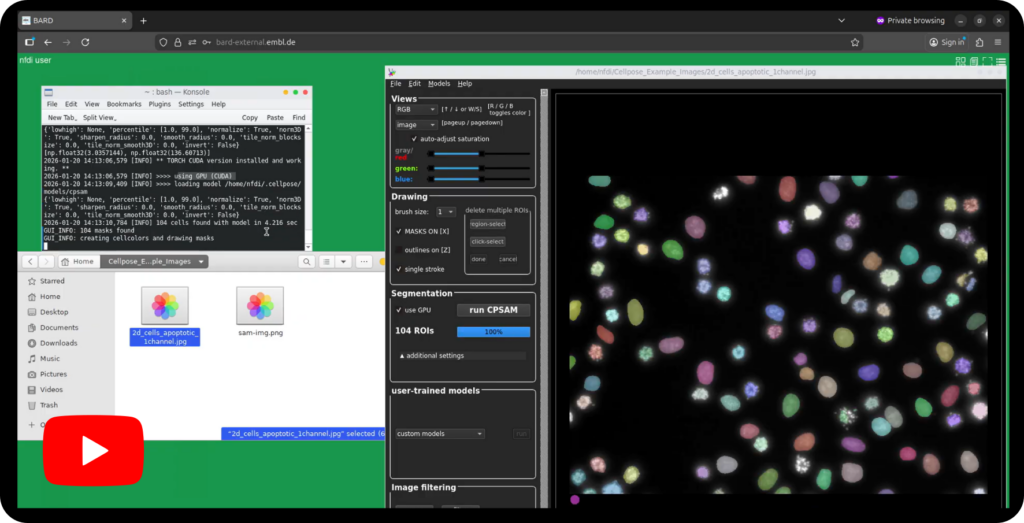
BAND and BARD are cloud-based, flexible computing environments designed to make bioimage analysis easier and more accessible for users. They offer you essential tools and computing power in a single, integrated workspace. You work within a familiar graphical desktop that opens in a web browser. You will not need physical hardware, elaborate local installations or complex environment setups.
BAND and BARD have different hardware configuration and are thus ideal for different modes of usage. BAND is particularly suitable for your bioimage analysis workflows that require access to cluster computing. It is ideal for researchers who need both interactive exploration and large-scale batch analysis. BARD is the platform recommended for workshops and courses. It allows various users to run a session in parallel.
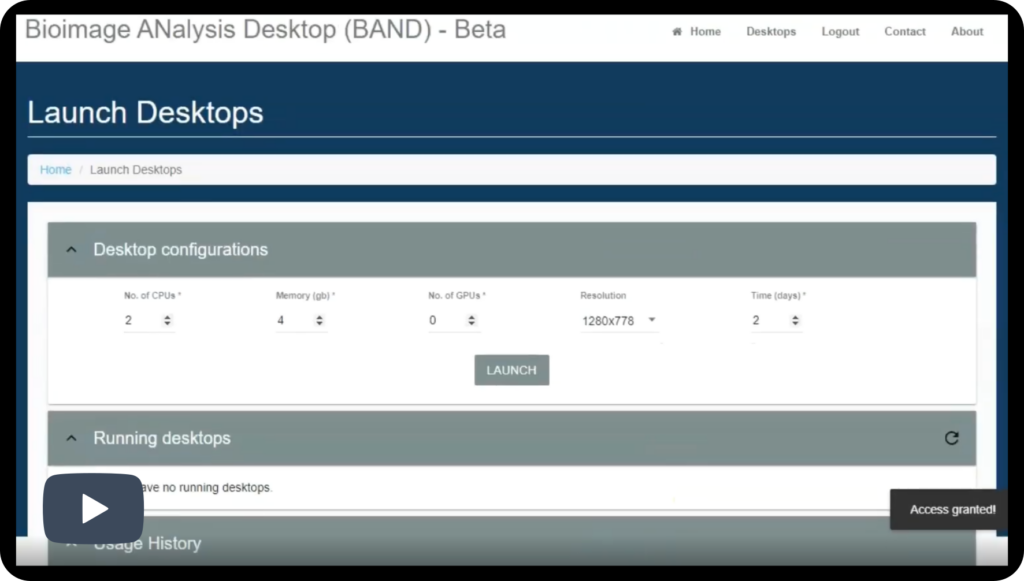
In both platforms, users can launch desktops with resources tailored to their specific tasks, such as the required number of CPUs, memory, or GPU acceleration. If you are uncertain regarding the requirements (hard- and software) for your analysis or plan to organize a course using BARD contact our Help Desk.
How can you access BAND and BARD to start your powerful image analysis?
Do you need a desktop environment? Access BAND:
First time users of BAND, welcome. Initially and once, setup a login and register:
a) Login to LS Login: In case your local university or institution does not yet provide you access to it, register yourself first using e.g. your ORCID or GitHub logins (duration about 10 minutes). Once you can login to LS Login, you are prepared to create an account with BAND.
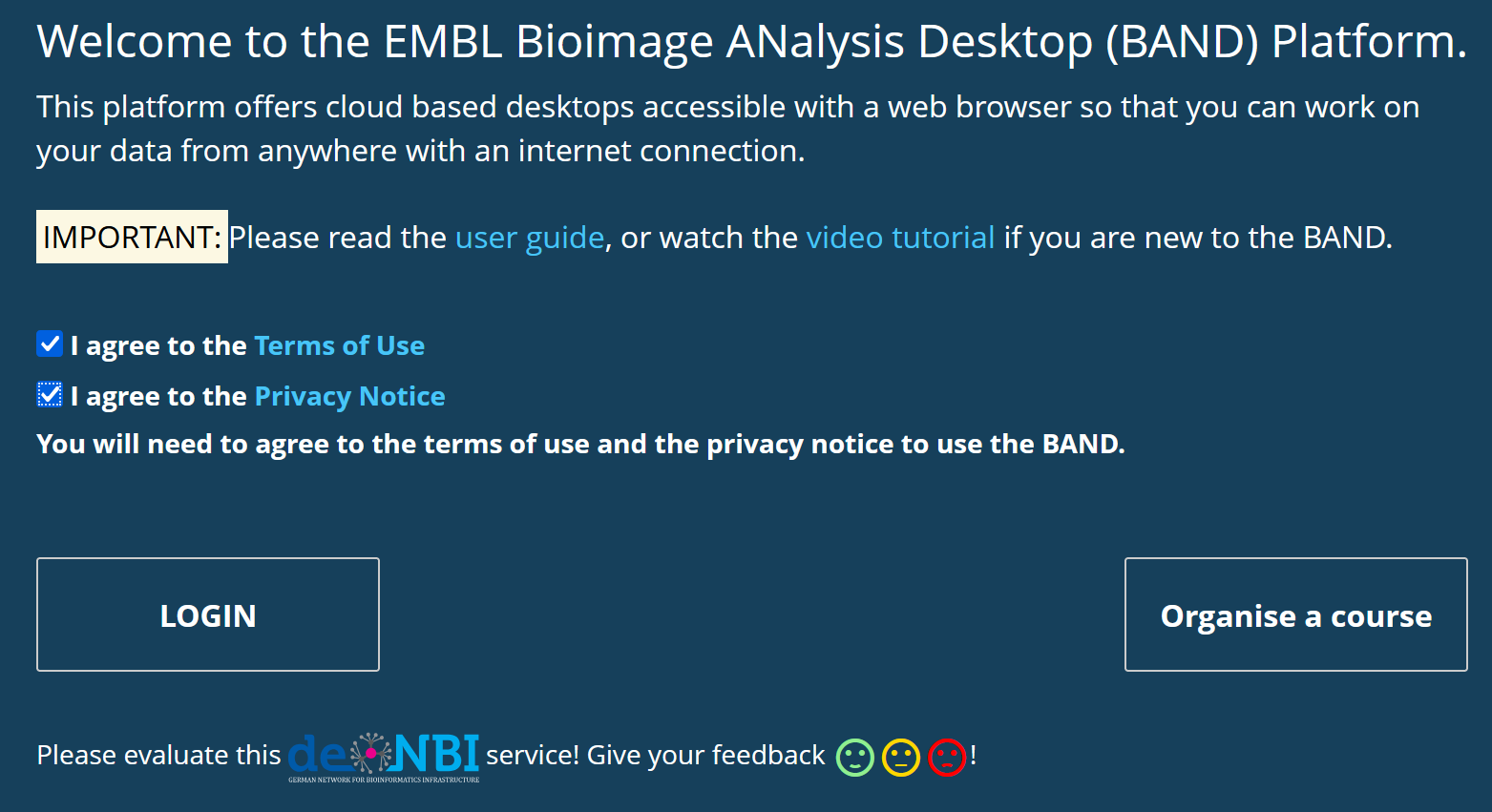
b) Create an account with BAND: Access the DeNBI BAND service in your browser. You MUST check to agree to the Terms of Use and the Privacy Notice buttons to be allowed to login. (In case your browser only shows 1 checkbox, change to a different web browser.)
As registered user: Access BAND via LS Login and you arrive at the start page of BAND. To start a new desktop session, define the settings of the analysis desktop you aim to use by selecting required hardware components such as CPUs, GPUs and storage space and get access to a desktop tailored to your needs. In case you have a running desktop session, you can re-access it from the start page of BAND and continue where you had left.
Do you plan to organize a course using a desktop environment? Access BARD:
Request a login to the BARD instance and arrange details through our Help Desk. Our colleagues will reserve the required resources for you.